LASSO emails students when an administration opens and sends reminders on a schedule you control. Reminders come from reminder@lassoeducation.org.
What students receive
The email, titled Assessment Reminder for LASSO, includes your name, your custom message (if you added one when creating the course), the deadline, your email address, a Take Assessment button that opens the student’s personal copy, and a Create Account button. See how students get to their assessment.
Set the reminder schedule
- Open the assessment’s administration page and open Assessment Roster.
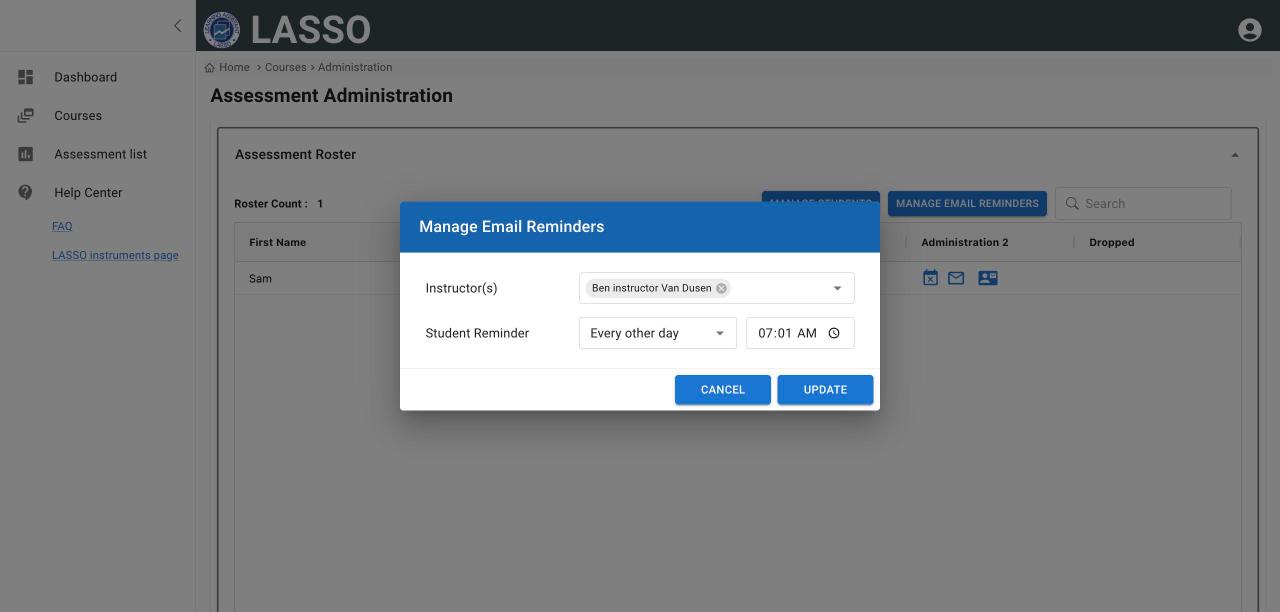
- Click MANAGE EMAIL REMINDERS.
- Under Student Reminder, choose Everyday, Every other day (the default), Every third day or No thanks, and the time of day.
- Check which Instructor(s) the reminders are associated with.
- Click UPDATE.
Send a reminder now
- Everyone who has not finished: on the administration’s card, click Send Reminders. (Or click Send Reminder next to the course on the Dashboard.)
- One student: in the Assessment Roster, use the icons in that administration’s column. The envelope (System mail) sends the LASSO reminder. The card icon (Default App) opens an email in your own email program so you can write a personal note.
Post a link in your course site
Each administration card has an Optional Assessment Link. Click it to copy a link you can post in your LMS or an assignment. Students who follow it sign in to LASSO and see their assessment. It works only for students on your roster whose LASSO account uses their roster email.
Next: Monitor participation
All instructor guides | Help Center home
Verified on LASSO version 10.1.2, October 2026. Questions? Email contact@lassoeducation.org.