
An administration is one time students take an assessment, such as the pre-test. When an administration opens, LASSO emails every student on the roster a personal link.
Open the Assessment Administration page
- Click Courses.
- Scroll the table to the right and click the arrow (>) next to your course’s name.
- Click the name of the assessment.
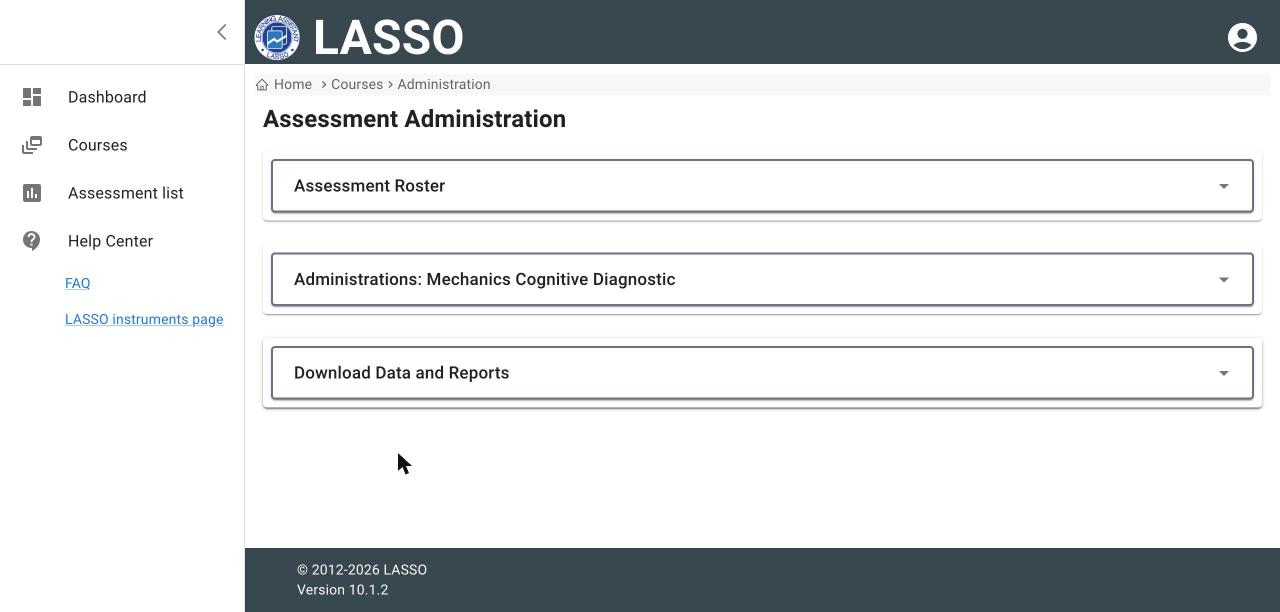
The page has three sections: Assessment Roster, Administrations and Download Data and Reports. Click a section’s title to open it.
Set the dates
- Open Administrations. Each administration (Administration 1, 2, and so on) has a card.
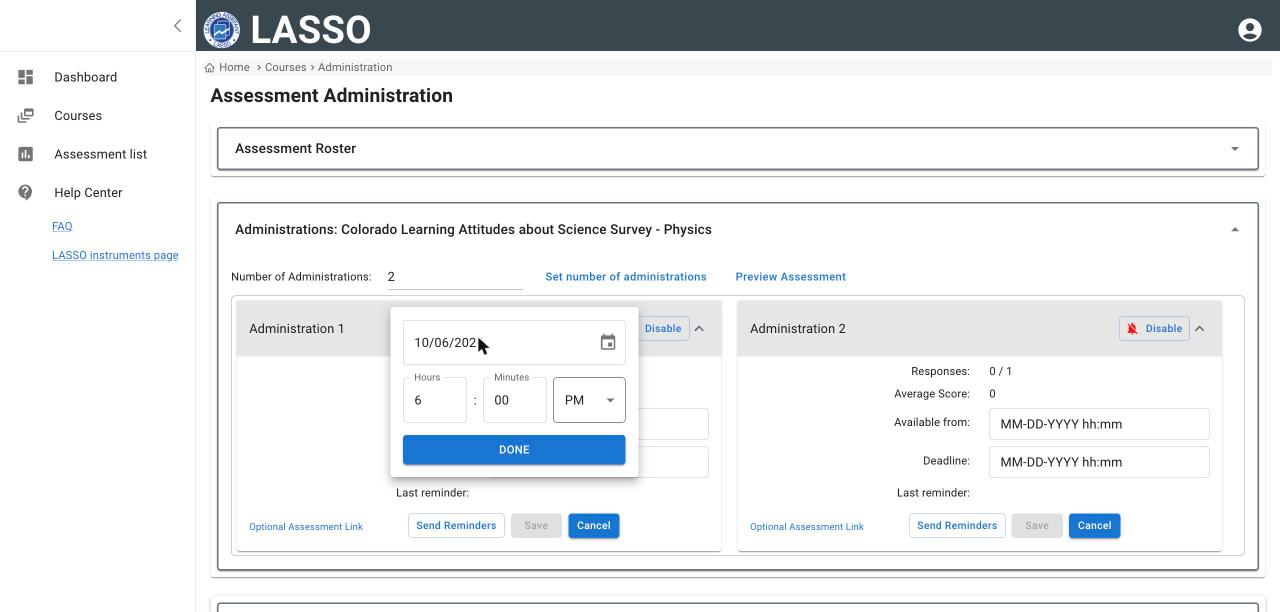
- Click Available from. Pick the date, set the hour, minutes and AM or PM, then click DONE.
- Click Deadline and set it the same way. The deadline must be after the start.
- Click Save.
Important: If the start time is already past when you click Save, LASSO emails all students immediately (you will see Saved and email reminder Sent). Otherwise you will see Dates saved successfully, and the emails go out when the administration opens.
What the card shows
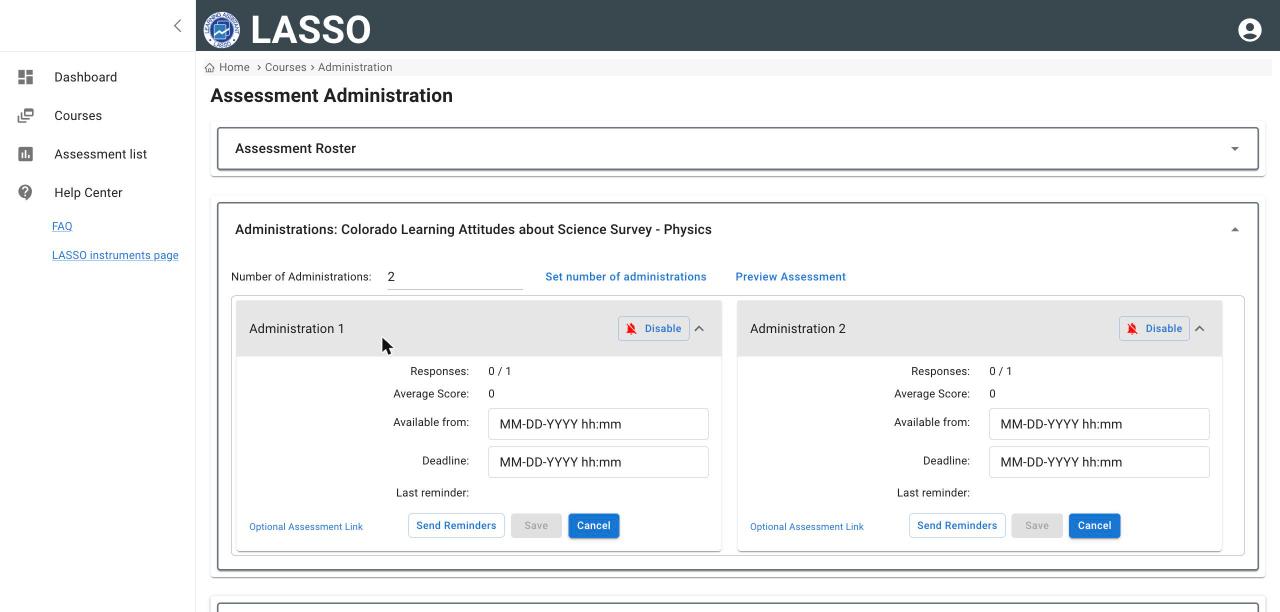
- Responses: completed responses out of students on the roster.
- Average Score, Last reminder.
- Preview Assessment (above the cards): see what students see.
Change or turn off an administration
- To change dates, edit them and click Save. Cancel discards unsaved changes.
- Disable turns the administration off completely: no one can take it and no emails go out. Use it for an administration you no longer plan to give.
Tip: If saved dates look blank after you open another section, reload the page. After saving, check that the times shown match what you entered.
Next: Send reminders and share assessment links
All instructor guides | Help Center home
Verified on LASSO version 10.1.2, October 2026. Questions? Email contact@lassoeducation.org.