
Check participation a few days into each administration so you have time to remind students.
See who has finished
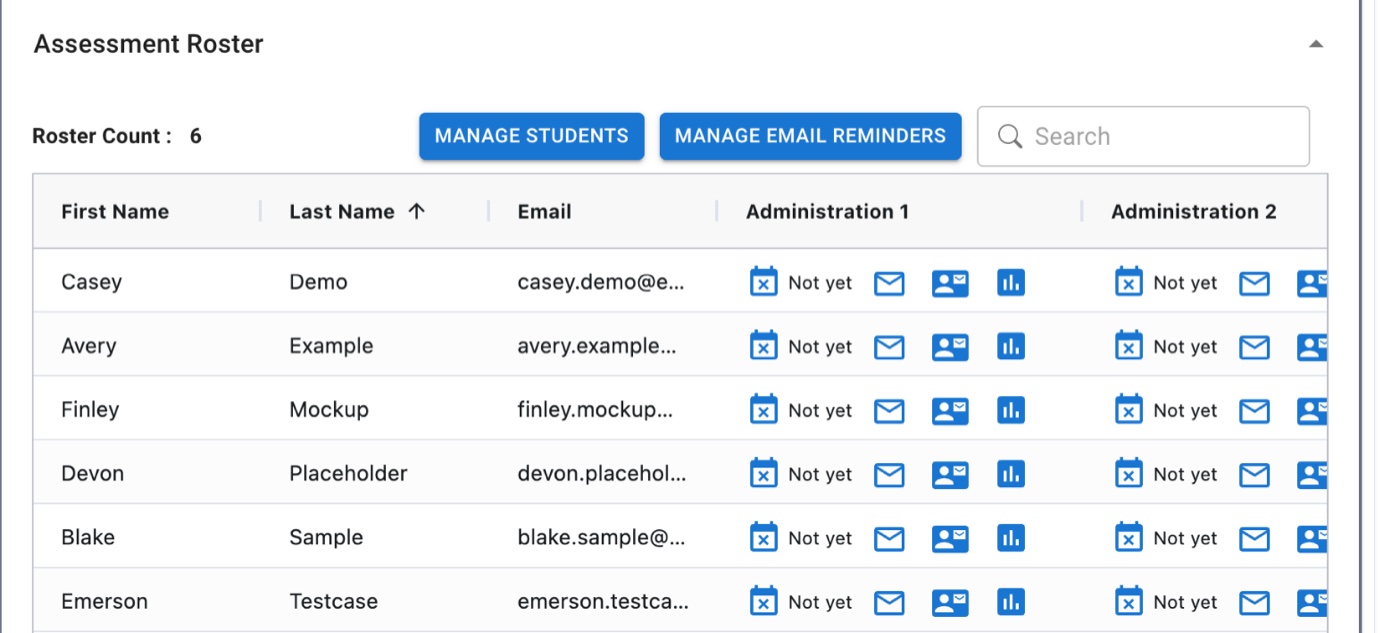
- Open the assessment’s administration page (how) and open Assessment Roster.
- Each administration has a column for every student. Done with a green calendar means the student has completed it; Not yet with a grey calendar means they have not.
- Use Search to find a student. Roster Count shows how many students are on the roster.
See totals
- Each administration card under Administrations shows Responses (completed out of total).
- On the Dashboard, each open assessment on a course card shows how many students have responded (for example 12 of 30 responded) and its status (Open until a date). The line under Your courses counts how many assessments are open now.
Students who saved an assessment to finish later still appear as Not yet until they submit.
Next: Download your data
All instructor guides | Help Center home
Updated for the November 2026 LASSO release. Questions? Email contact@lassoeducation.org.