
An administration is one time students take an assessment, such as the pre-test. When an administration opens, LASSO emails each student on the roster who has not completed it a personal link.
Open the Assessment Administration page
On the Dashboard, click Open (or Set dates) next to the assessment on its course card. Or click All courses, click the course’s row, then click Open or Set dates next to the assessment. Right after you add an assessment, LASSO opens this page for you.
On the Dashboard and the course page, each assessment shows its status: Open until a date, Opens a date, or No upcoming dates.
The page has three sections: Assessment Roster, Administrations and Download Data and Reports. Administrations starts open. Once every administration has closed, the page opens on Download Data and Reports instead. Click a section’s title to open or close it.
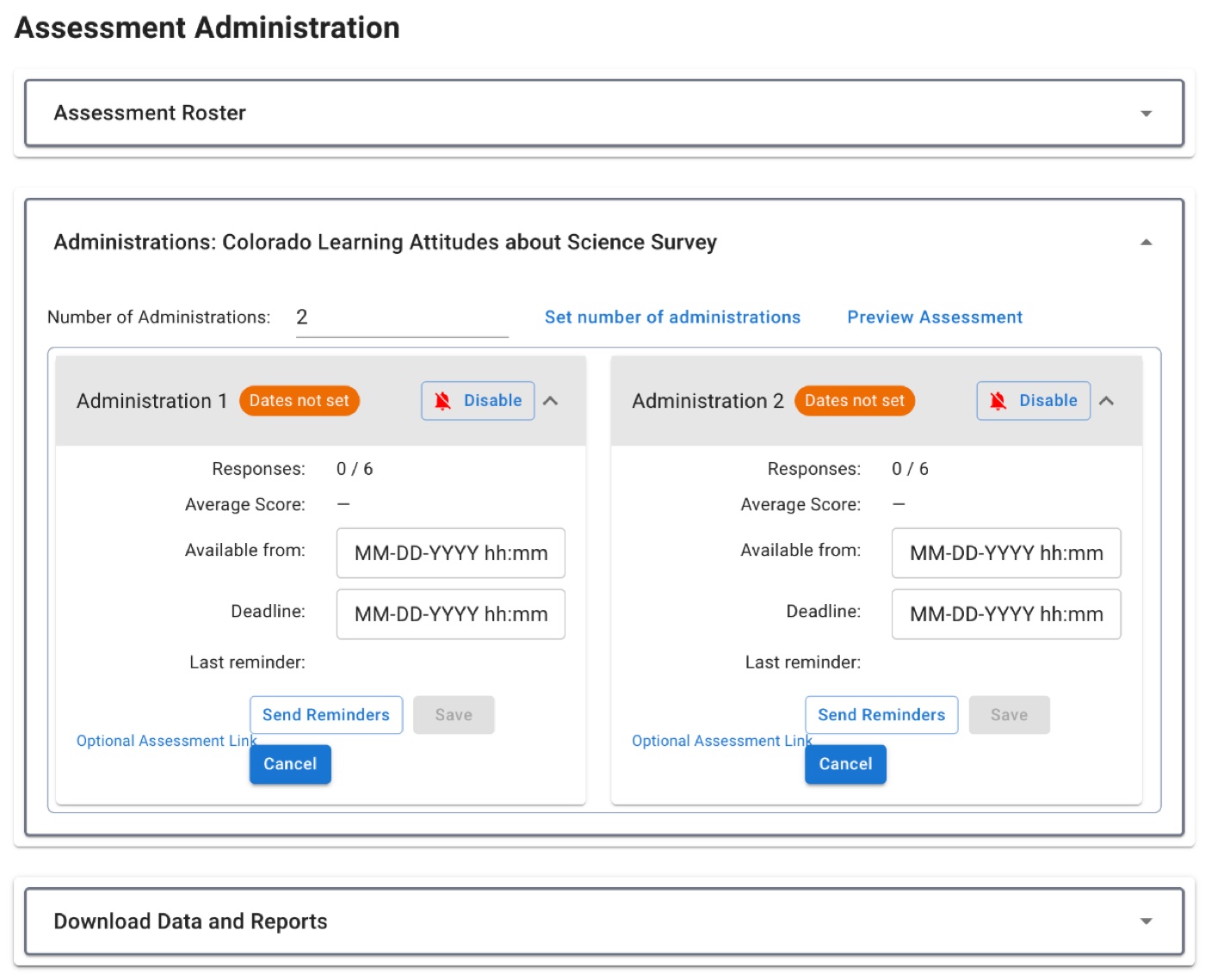
Set the dates
- In Administrations, each administration (Administration 1, 2, and so on) has a card. A card without dates is marked Dates not set.
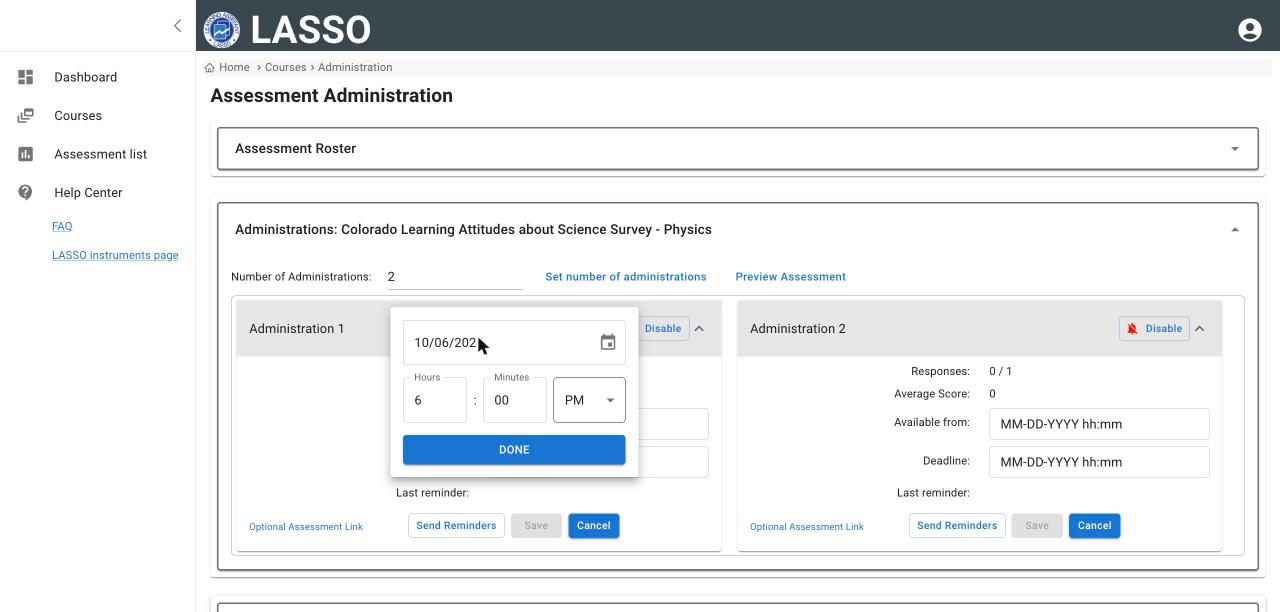
- Click Available from. Pick the date, set the hour, minutes and AM or PM, then click DONE.
- Click Deadline and set it the same way. The deadline must be after the start; the picker opens at the earliest time you can choose.
- Click Save.
Important: If the start time is already past when you click Save, LASSO asks Open this administration now? and says how many students it will email right away. Click Send to open it now, or Cancel to change the date. Otherwise you will see Dates saved, with the day and time the emails will go out.
You need students on the roster before you can save dates. For an adaptive assessment, also choose at least one learning objective first. If saving fails, you will see Dates not saved, and no email is scheduled.
What the card shows
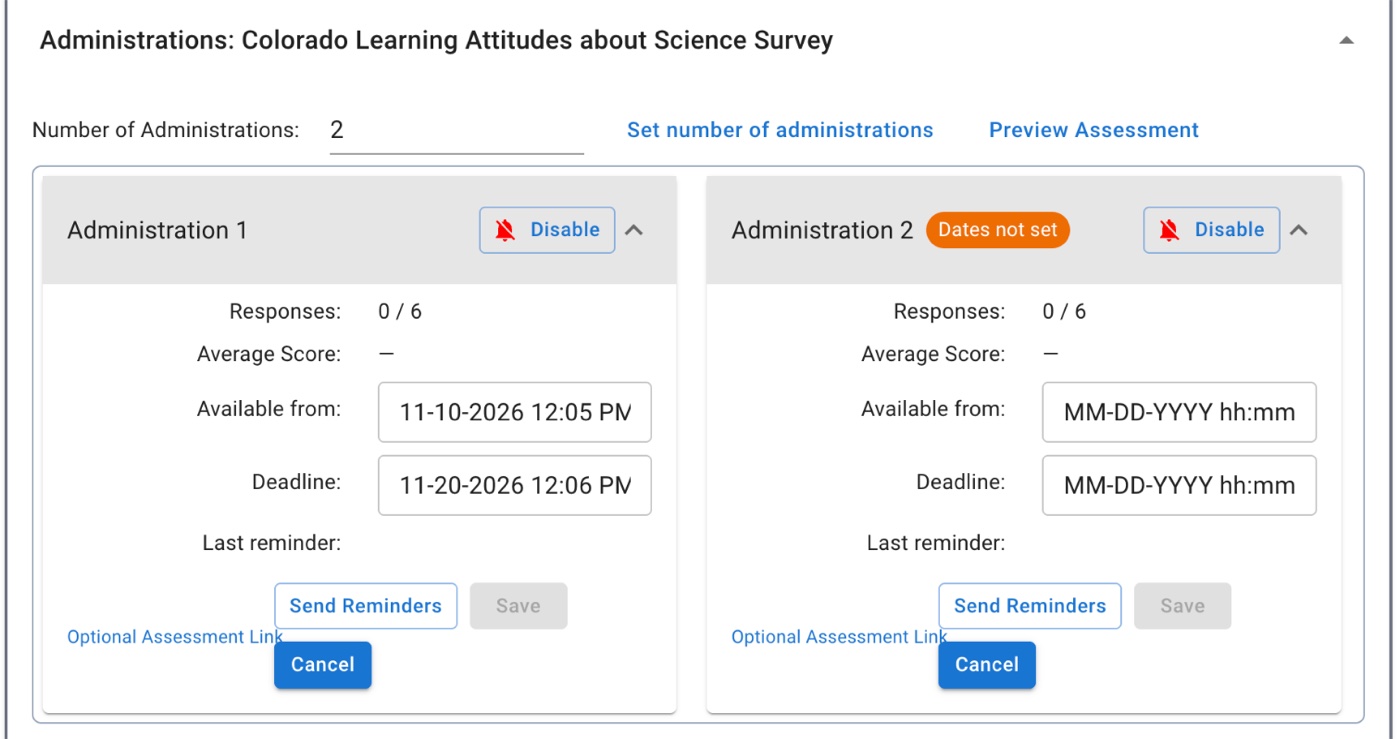
- Responses: completed responses out of students on the roster.
- Average Score (a dash until there are scores) and Last reminder.
- Preview Assessment (above the cards): see what students see.
Change or turn off an administration
- To change dates, edit them and click Save. Cancel discards unsaved changes.
- Disable turns the administration off completely: no one can take it and no emails go out. LASSO asks Disable this administration? first. Use it for an administration you no longer plan to give. You can turn it back on with Enable on the same card.
Tip: Times are shown in your computer’s time zone. Dates outside the current year show the year.
Next: Send reminders and share assessment links
All instructor guides | Help Center home
Updated for the November 2026 LASSO release. Questions? Email contact@lassoeducation.org.