
You can add one or more assessments to a course. Each assessment can be given several times (administrations), usually twice: a pre-test and a post-test.
Choose an assessment
Browse the assessments page or the Assessment list in LASSO. There are three kinds, and each has a different report:
- Concept inventories: research-based tests of conceptual understanding, usually given pre and post.
- Likert-scale surveys: attitudes and beliefs (for example CLASS).
- Cognitive diagnostic (adaptive) assessments: adaptive tests that report proficiency and skill mastery and can be given many times (for example the Mechanics Cognitive Diagnostic). These need one extra setup step.
Add an assessment
- On the Dashboard, click Add assessment on your course’s card. (Or click ADD ASSESSMENT on the course page, or on the course’s row in All courses.)
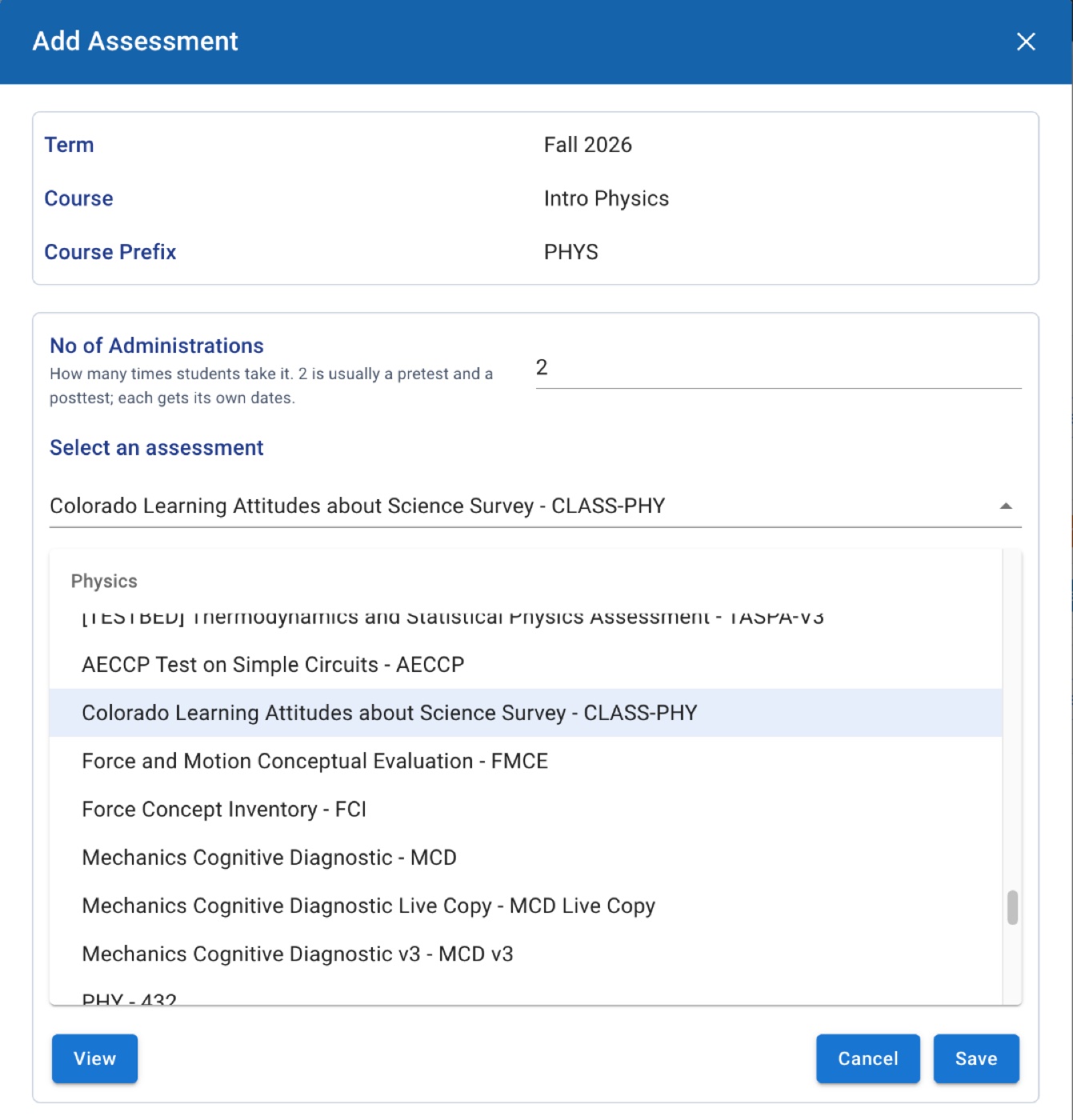
- Check No of Administrations: how many times students take it. The default is 2, a pre-test and a post-test, each with its own dates. Change it if you plan to give the assessment more often.
- Under Select an assessment, type part of the name or scroll the list, which is grouped by discipline. Click the assessment. Assessments already on the course are marked (already added to this course).
- Optional: click View to preview it in a new tab, exactly as students see it. Close the tab when done. Adaptive assessments cannot be previewed.
- Click Save, then OK on Assessment added successfully! LASSO then opens the assessment’s administration page so you can set its dates (and, for an adaptive assessment, choose its learning objectives).
Repeat to add more assessments to the same course.
Important: To give the same assessment again (for example a post-test), add an administration to the copy already on the course instead of adding a second copy. Results on separate copies are not paired as pre and post in reports. If you pick an assessment that is already on the course, LASSO reminds you and offers a button to open its administrations.
Tip: Students may see a different, more general name than you do. For example, CLASS-PHY appears to students as “Science Attitudes Survey”.
Change the number of administrations or remove an assessment
- To give it more times, open the assessment’s administration page (how to open it), enter the new Number of Administrations and click Set number of administrations. You can raise the number, up to 16, but not lower it.
- To remove it, open the course page (click the course name on the Dashboard, or the course’s row in All courses) and click the red trash icon (Delete) next to the assessment. Click Yes, delete it! to confirm. This cannot be undone.
Next: Schedule an administration
All instructor guides | Help Center home
Updated for the November 2026 LASSO release. Questions? Email contact@lassoeducation.org.