
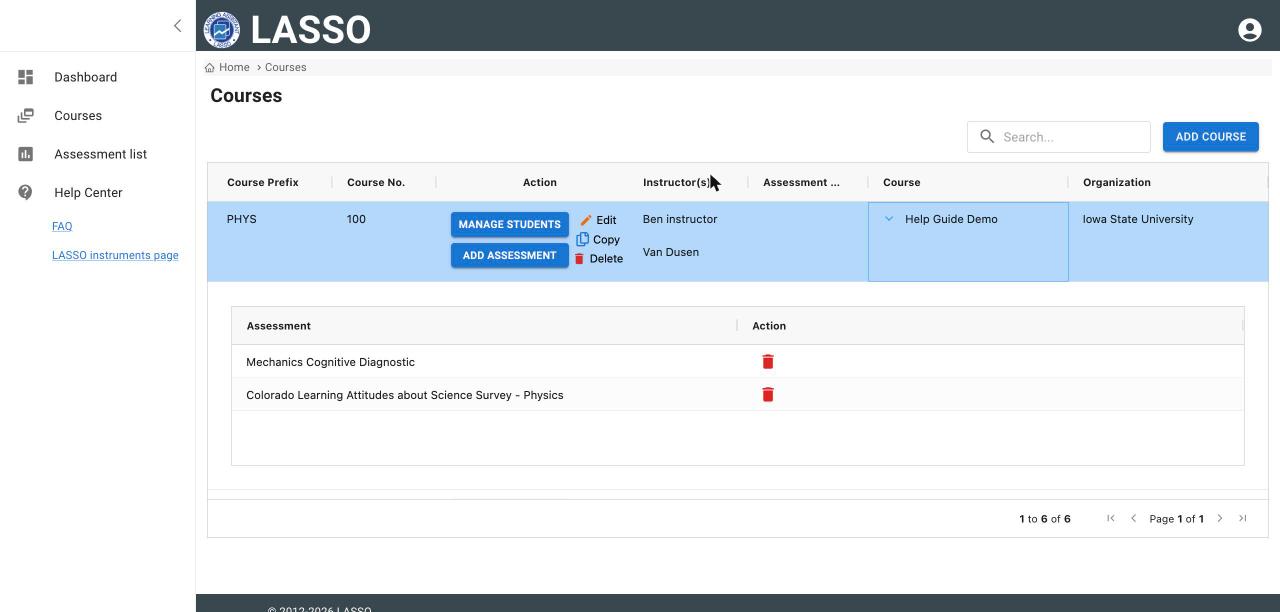
Each course on the Courses page has Edit, Copy and Delete buttons in the Action column.
Find a course
- Click Courses in the left menu.
- Type in Search to filter the list.
- To see a course’s name and its assessments, scroll the table to the right to the Course column and click the arrow (>) next to the course name.
Edit a course
- Click Edit on the course’s row.
- Change any section, then click Update.
Copy a course for a new term
- Click Copy on the course’s row. A new course form opens with your previous answers filled in.
- Open Course Name and change the Term and Year. The copy keeps the old term until you change it.
- Review the other sections, then click Save.
- Add assessments and students to the new course; they are not copied.
Delete a course
- Click Delete on the course’s row.
- LASSO asks Are you sure? Click Yes, delete it! (or Cancel).
- Click OK on Course deleted.
Important: Deleting a course cannot be undone. Delete only courses you created by mistake. To stop giving an assessment, Disable its administrations instead.
Next: Choose and add assessments
All instructor guides | Help Center home
Verified on LASSO version 10.1.2, October 2026. Questions? Email contact@lassoeducation.org.